Microsoft Ignite
- 4.0
- Rating
- 500.00K
- Installs
- Free
- Price
 Analysis by App-foxy
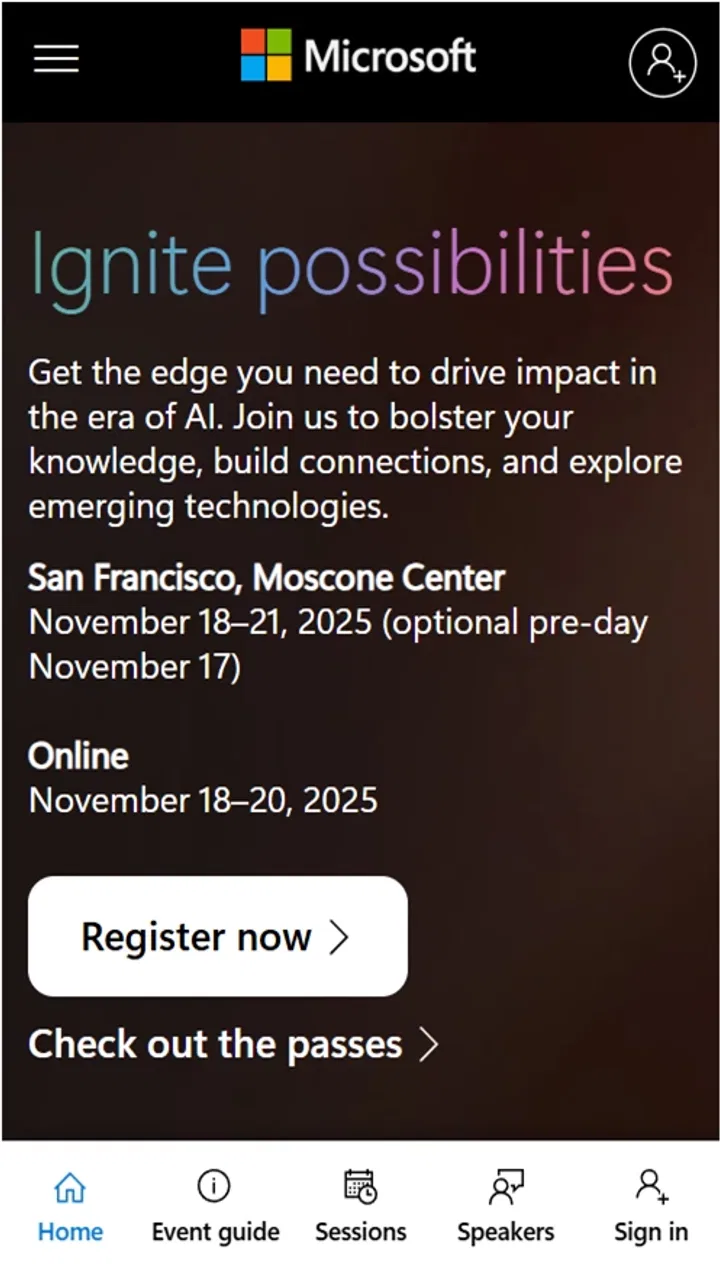
Microsoft Ignite is the kind of event app I would open with a specific purpose rather than browse casually. It is built around Microsoft’s technology event, where the value comes from finding relevant sessions, understanding the schedule, and keeping event information close at hand. After spending time with it, I see a focused companion for people following Ignite, not a general events platform that happens to include a technology conference.
That distinction matters. If you are already interested in Microsoft’s latest technology announcements, the app gives your event planning a more direct home than a browser tab or a collection of saved emails. If you are looking for local concerts, community activities, or a broad calendar of conferences, this is simply the wrong tool. Its usefulness depends heavily on whether Microsoft Ignite is already part of your plans.
How the app feels to use during an event
I focus here on the app’s role as a quick event reference: it can help me keep an Ignite plan within reach, while a little preparation makes those brief checks more useful. I’ll also consider why that convenience matters most when the day is busy, and where a calendar or written note still has the edge.
You May Also Like

 Blood Strike: 2.5 Anniversary
Blood Strike’s Loadouts Turn Every Drop Into a Tactical Gamble
A close look at Blood Strike’s custom loadouts: how fast access to signature weapons reshapes its battle royale rhythm, rewards preparation, and narrows the gap between fights.

 Pandora - Music & Podcasts
Pandora’s Music Is Easy to Start, but Harder to Recover
Pandora’s strength is its low-effort path from a seed to a station. Its weak spot is how much confidence it asks you to place in connection, setup, and quiet recovery.

 8 Ball Pool
 Is Built on Rivalries, Rematches, and Routine
A close look at the rivalries, rematches, shared routines, and unanswered safety questions that turn a quick pool match into a persistent mobile community.

 Samsung Music
’s Quiet Strength Is Playing What You Already Own
Its reach comes less from spectacle than from dependable access to a personal library. That simplicity is both the app’s strongest retention engine and its ceiling.

 AccuWeather: Weather Radar
AccuWeather Review: A Quick, Clear Forecast for Everyday Decisions
For everyday plans, the best forecast is the one you can understand quickly. AccuWeather makes rain timing, radar, and local conditions easy to act on, with a few trade-offs.

 Hill Climb Racing
Why Hill Climb Racing Still Turns Crashes Into One More Run
A tiny car, a bumpy hill and one more upgrade: Hill Climb Racing keeps resurfacing because its simple chaos makes every near-miss feel personal.
More From Our News Desk



Readability and navigation are most useful when you know what you want
My first impression is that the app’s purpose is easy to understand. Microsoft Ignite is presented as an event-focused experience, so I do not have to work through unrelated categories before reaching the information that matters. That narrow scope can feel refreshing compared with a general event service, especially when I am trying to move quickly between event details and technology content.
The practical challenge is that a large technology event can contain a lot of information. A schedule may involve sessions, speakers, announcements, and topics that overlap. I found that the best way to approach the app is with a short list of priorities already in mind: a product area I want to follow, a type of session I prefer, or a particular time window I can actually attend. Without that preparation, event apps can become browsing exercises, and this one is no exception.
For readability, I would use the phone’s own display settings to make text easier to see before settling into a long session-planning task. Larger system text, stronger contrast, and a less reflective screen can make a meaningful difference, particularly when I am checking information in a busy venue. The app should not be treated as a substitute for those device-level adjustments; the phone’s accessibility controls are part of the overall experience.
One useful habit is to review the schedule when I am calm, then use the app for quick confirmation later. That reduces the need to read dense information while walking between rooms or standing in a crowded area. It also helps avoid a common event mistake: choosing sessions based only on their titles and discovering too late that several appealing options overlap.
The interface is likely to feel most comfortable to users who already understand Microsoft’s event vocabulary. Someone familiar with cloud services, development tools, artificial intelligence, or enterprise software can usually interpret the topics quickly. A newcomer may need more time to decide which sessions are genuinely relevant. I would not blame the app for that entirely, because the complexity comes from the event itself, but it does affect how approachable the experience feels.
Motor and sensory considerations in real use
Event apps are often used under awkward conditions: one hand is occupied with a bag, the phone is being held at an angle, or the user is moving through a noisy hallway. That changes what “easy to use” means. For me, the most comfortable workflow is to do detailed planning while seated and reserve short checks for moments when I need to confirm where I am going or what comes next.
Users with limited dexterity may prefer to keep interaction steps short. Rather than repeatedly opening and closing different areas, I would make a small plan in advance and avoid unnecessary changes during the event. A phone’s voice control, switch access, or external input options may also help, depending on the device and operating system. Those controls belong to Android or iOS rather than being features I would attribute directly to this app.
For users with visual sensitivities, the surroundings may be a bigger issue than the software. Bright conference lighting, crowded screens, and constant movement can make even a readable app tiring. Checking the schedule in a quieter place, lowering screen brightness, and enabling a device-wide dark appearance where available can make the experience less demanding. I would also avoid relying on the app as my only memory aid; a short written note or calendar reminder can reduce repeated visual checking.
People with hearing loss face a separate question: an event companion can help organize information, but it cannot automatically make every live presentation accessible. I would use the app to identify sessions and plan around them, while checking the event’s own arrangements for captions, transcripts, interpretation, or other support. It is important not to assume that an event app itself provides those services simply because it lists the sessions.
Users with cognitive disabilities may benefit from a very deliberate routine. I would narrow the day to a manageable number of sessions, note breaks, and keep a simple backup plan for schedule changes. The app can support organization, but a dense event schedule can still create decision fatigue. In my experience, the best accessibility improvement is often reducing the number of choices I expect myself to make at once.
Situational access: where it helps and where it becomes awkward
The strongest use case is straightforward. Imagine I am attending or following Microsoft Ignite from a phone while moving between work commitments. In the morning, I review the sessions connected to my role, choose a realistic sequence, and keep the app available for quick checks. If a meeting runs late, I can reassess instead of carrying a printed schedule that is already out of date. That is the kind of small convenience that makes a dedicated event app worthwhile.
It can also help remote followers who are not physically at the venue. A person watching selected technology content from home may use the app as a central reference point rather than switching between unrelated pages. The benefit is less about exploration and more about keeping the event’s material organized around one recognizable destination.
However, the phone is not always the best screen. If I am comparing several sessions, reading technical descriptions, or trying to understand how multiple topics fit together, a larger computer display is more comfortable. My preferred setup would be to use a computer for deeper research and the mobile app for quick reference. That division of labor is more practical than forcing the phone to handle every task.
Travel introduces another layer of friction. A user may be dealing with poor connectivity, low battery, glare, or limited time. I would prepare before leaving a reliable connection, charge the phone, and keep essential details in a secondary form when possible. I would not assume that an event app will always be convenient in a basement room, a crowded venue, or a place with inconsistent reception.
For people who need a low-stimulation experience, the app is only one part of the situation. The event environment can remain overwhelming even when the schedule is clearly organized. Planning arrival and departure times, choosing quieter breaks, and limiting back-to-back sessions may matter more than any individual screen. Microsoft Ignite is useful for planning that routine, but it cannot control the physical setting around the user.
What it does better than ordinary alternatives
The usual alternative is a web browser with several tabs open. That approach can work, but it tends to scatter the experience across pages, search results, and messages. A dedicated app feels more intentional: I open it because I want the event, not because I am trying to reconstruct the event from whatever page appears first in a search.
Another alternative is a calendar app. Calendars are excellent for protecting time and creating reminders, but they are not designed to explain an event’s full context. I would use a calendar for the sessions I have committed to, then return to Microsoft Ignite when I need event-specific information. The app and the calendar solve different problems, and replacing one with the other would leave gaps.
Email is useful for confirmations and announcements, yet it is a poor long-term schedule. Important details can disappear into an inbox, while an event companion keeps the focus narrower. The trade-off is that the app is valuable mainly during the Ignite experience; a calendar or note-taking tool remains useful for many other parts of life.
General conference platforms may offer broader networking or event-management tools, but breadth is not automatically better. I would choose this app over a generic platform when my main goal is to follow Microsoft’s technology event without unrelated conference material. I would choose the generic option when I need one place for several different events, organizations, or ticket types.
Three practical ways I would use it
First, I would treat the app as a filter rather than an endless catalogue. Before opening the schedule, I would write down the two or three technology areas that matter to me. Then I would select sessions that serve those goals and ignore attractive but distracting titles. This makes the app more useful for learning and less likely to turn into passive scrolling.
Second, I would build recovery time into the day. Technical events often encourage ambitious planning, but moving between sessions, taking notes, and processing complex material all consume energy. Leaving space between choices is particularly helpful for users who need more time to read, orient themselves, or manage sensory load. A schedule with fewer sessions can produce a better experience than a crowded one.
Third, I would create a two-layer information system. The app would hold the event context, while a simple note would contain my questions, key terms, and follow-up tasks. This is a useful trade-off because event apps are designed for navigation and discovery, not necessarily for preserving a personal learning record. Separating those jobs makes it easier to revisit what I actually learned.
A fourth tip is to plan for missed content without treating the day as a failure. If a session conflicts with a work call or becomes inaccessible in the moment, I would move on and keep the next useful option. That mindset is especially important for users who need breaks or who cannot comfortably navigate a rapid sequence of activities. The app can support a flexible plan, but the user still has to decide what is realistic.
Remaining barriers and who should think twice
The biggest limitation is focus. This is an app for one named technology event, not a complete event-management system for everyday life. Someone who wants a broad discovery tool will find the scope restrictive. Someone who only needs one or two saved calendar entries may also prefer not to install a dedicated companion at all.
There is also a learning curve created by the subject matter. Microsoft Ignite is aimed at technology conversations, and the event’s terminology may be difficult for people who are new to enterprise software or professional development. The app can organize the material, but it cannot remove the need to understand what each topic means. I would recommend it more confidently to professionals, students, administrators, developers, and technology-curious users who are willing to do some preparation.
Accessibility needs should be considered with care. I would not describe the app as universally accessible based only on its event purpose. People who depend on captions, transcripts, screen-reader-friendly labeling, simplified language, or specific navigation behavior should test the experience on their own device and confirm that the event content meets their needs. Device settings can help, but they cannot repair every design or content barrier.
Users who are easily overwhelmed by dense schedules may also struggle if they approach the app without a plan. The solution is not to abandon it immediately, but to reduce the amount of information being handled at once. If even that feels tiring, a short personal checklist may be a better companion than a full event app.
Privacy-conscious users may reasonably want to review the app’s permissions and account behavior before using it. I would make that check part of installation, especially on a work device. The app comes from Microsoft Corporation, which may reassure people already using Microsoft services, but familiarity with the developer should not replace personal review of device settings.
Compatibility, cost, and everyday expectations
The app is free, carries an Everyone age rating, and has a minimum operating-system requirement of Android 4.4. Its current version is 1.0.0.0, so I would approach it as a focused event companion rather than a mature, all-purpose platform with years of accumulated refinement. That does not make it unusable, but it does make real-world testing on my own phone more important.
Its public reception is positive but not overwhelming: it holds an average rating of 4.0 from around 1.2 thousand ratings, with roughly 29 written reviews and more than 500 thousand installs. I read those figures as a sign of practical interest rather than proof that every user will have the same experience. The app was released on September 23, 2024, which also places it in a relatively early stage of its life.
The free price lowers the risk of trying it for a specific event. I would install it before I need it, explore the navigation while I have time, and remove it later if I no longer have a reason to follow Ignite. That is a sensible approach for a specialized event app: use it when it solves a concrete problem, rather than expecting it to become a permanent daily tool.
My inclusive verdict
I recommend Microsoft Ignite to people who want a dedicated way to follow this Microsoft technology event and who are comfortable doing a little preparation. Its narrow purpose is its main strength. I can focus on event information instead of reconstructing a schedule from scattered sources, and the app fits naturally into a workflow that combines event planning, a calendar, and personal notes.
I would be more cautious about recommending it to someone who needs guaranteed support for a particular accessibility requirement, who finds technology-event language difficult, or who wants a general-purpose events app. In those cases, the app may still be useful, but it should be tested alongside the person’s own device settings and preferred support tools rather than treated as a complete solution.
My final view is that Microsoft Ignite works best as a focused planning and reference tool, not as an all-in-one accessibility or productivity system. It earns a place on my phone when Ignite is relevant, especially if I prepare a short list of priorities and avoid overloading the schedule. For an inclusive experience, I would pair it with system accessibility options, a calendar, personal notes, and realistic breaks. That combination gives the app room to do what it does well while acknowledging the barriers it cannot solve by itself.
For the right reader, Microsoft Ignite is a sensible free companion for following Microsoft’s event content. For everyone else, a browser, calendar, or broader event platform may be the more comfortable choice.
FAQs for Microsoft Ignite
01What is Microsoft Ignite and what does it offer?
Microsoft Ignite is a premier conference hosted by Microsoft, designed for IT professionals and developers. It offers a comprehensive platform for learning the latest in Microsoft technologies, including Azure, Microsoft 365, and Dynamics 365. Attendees can participate in workshops, listen to expert keynotes, and engage in hands-on labs.
02Is Microsoft Ignite available as an app, and what are its key features?
Yes, Microsoft Ignite offers an app for both Android and iOS. Key features include access to session schedules, personalized agendas, live streaming of keynotes, and networking opportunities with other attendees. The app also provides notifications for session updates and important announcements, ensuring users stay informed throughout the event.
03How can I benefit from using the Microsoft Ignite app during the conference?
The Microsoft Ignite app enhances your conference experience by providing a centralized hub for all event-related information. You can easily manage your schedule, access session materials, and connect with fellow participants. The app also offers real-time updates, ensuring you don’t miss any critical information or last-minute changes.
04Is there a cost associated with using the Microsoft Ignite app?
The Microsoft Ignite app is free to download and use for registered conference attendees. However, attending the conference itself may involve registration fees. The app serves as a companion tool to maximize your conference experience without any additional cost.
05Can I access past sessions and resources on the Microsoft Ignite app?
Yes, the Microsoft Ignite app allows users to access recordings of past sessions and download presentation materials. This feature is particularly useful for attendees who want to revisit specific topics or catch up on sessions they may have missed during the live event.
Pros
- Extensive range of developer tools included.
- Seamless integration with Microsoft services.
- Regular updates with new features.
- User-friendly interface for easy navigation.
- Comprehensive learning resources available.
Cons
- Resource-intensive
- may slow older devices.
- Limited offline functionality.
- Requires Microsoft account for full access.
- Some features hidden behind paywalls.
- Steep learning curve for beginners.

Microsoft Ignite
Gallery